Zoom in
- The control is small relative to the player
- The next action is easy to miss
- You need the viewer to read a specific string
- The layout is wide and the action is local
Recording guides
Zoom and cursor treatment exist to keep a viewer’s eyes on the next action. Used with restraint, they make a demo readable. Used on every click, they become the subject.
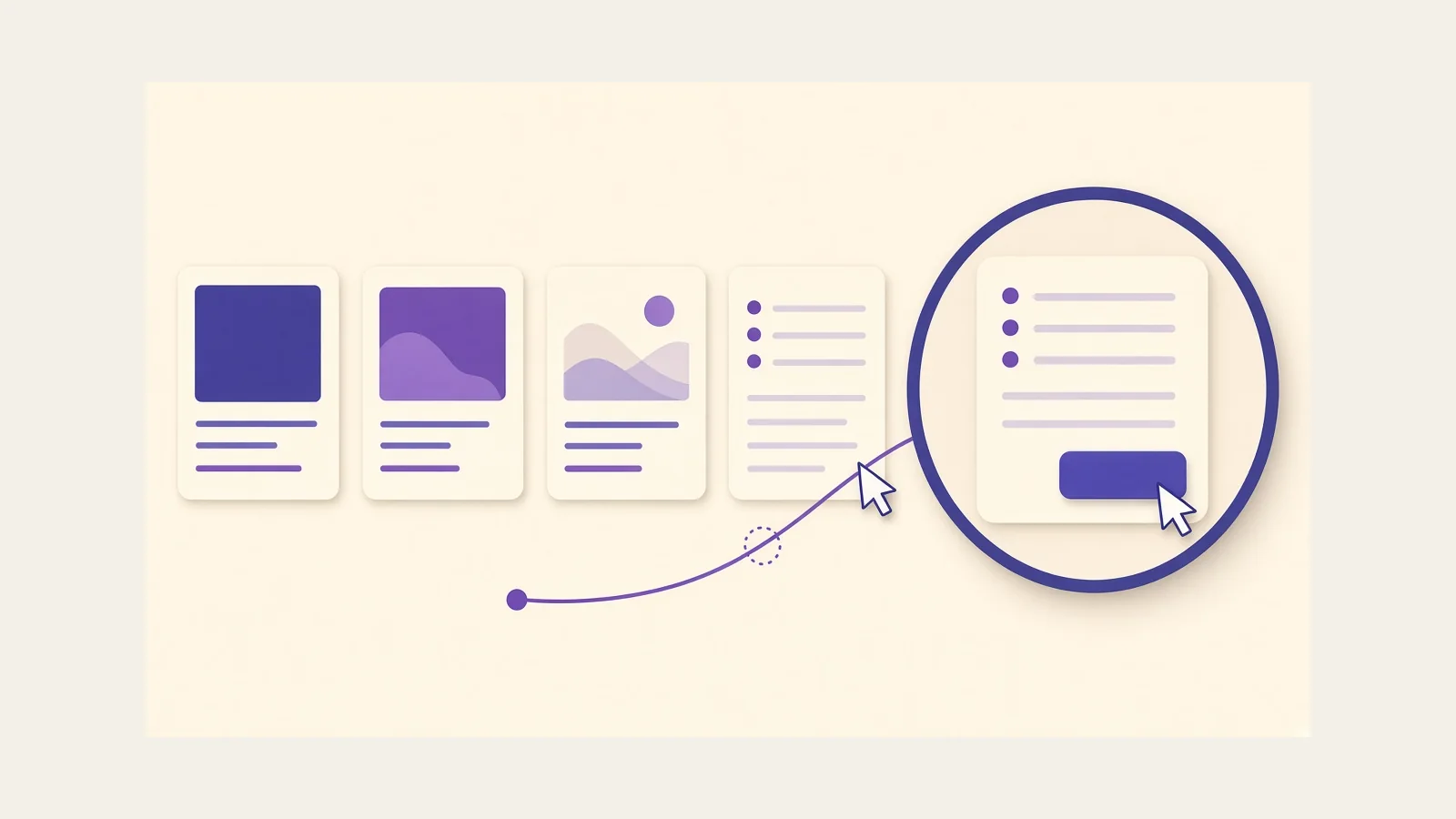
Most screen recordings are watched in a smaller window than the display they were captured on. A 27-inch desktop becomes a 720-pixel player. Labels, toggles, and error text shrink with it.
A zoom is a temporary crop with motion. It tells the viewer, “read this control now.” The motion also covers a jump that would feel abrupt as a hard cut. That is useful in software teaching, where the next click may be 1,200 pixels away from the last one.
Automatic zoom is a convenience, not a substitute for judgment. In Screen Studio, official documentation says auto zoom targets click positions. Clicks are a good hint, but they are not always the teaching point. A hover menu, a validation message, or a chart axis may matter more than the click that opened them.
The cursor is the narrator’s hand. If it is tiny, the viewer hunts for it. If it jitters, the viewer feels the operator’s nerves. If it rests on a sentence, it hides the words.
Official Screen Studio cursor options include size, style, hiding when idle, hiding entirely, looping the ending position, and reducing shake. Those controls exist because the cursor is composited after capture. You can record naturally, then make the pointer easier to follow.
Smooth motion and motion blur can make fast moves easier to accept on camera. They can also smear a path across dense UI. If the lesson is a spreadsheet or a settings list, prefer a calmer cursor animation.
Continuous motion is tiring. If every press triggers a new frame, the viewer spends attention on the animation instead of the product. Group related clicks inside one closer shot, then return to the wide view when the task changes.
Hold the zoom until you have said the sentence that belongs to that control. A zoom that lasts four frames is a flash, not a guide.
A click on an empty canvas, a mis-click, or a click used only to focus a window will pull the frame to the wrong place. Official Screen Studio notes are clear: auto zoom needs click data. Use manual zoom when the click is not the subject.
Park the pointer off the label you want people to read. If you use an idle-hide option, pause for a moment after the click so the cursor can leave the text.
Large click ripples, heavy rotation, and strong blur read as style. They rarely help a billing settings tutorial. Save stronger motion for short promotional clips where atmosphere is part of the job.
Record the task without performing zooms live. In the edit, mark the three or four moments a first-time viewer would lose the thread. Add zooms there. Then play the video without sound. If you can still follow the cursor, the presentation is doing its job.
Next, tighten the rest of the cut with video editing basics, or return to the Screen Studio guide for app-specific placement.