Auto zoom
Focuses on areas where clicks happened. If a zoom sits on a stretch with no clicks, it will not have a target.
Feature overview
A plain-language look at Screen Studio capabilities documented by the developer: capture, zoom, cursor, editing, and export.
Feature descriptions below follow official Screen Studio documentation. We do not invent options, versions, or prices. Check the official guide if you need the latest control names.
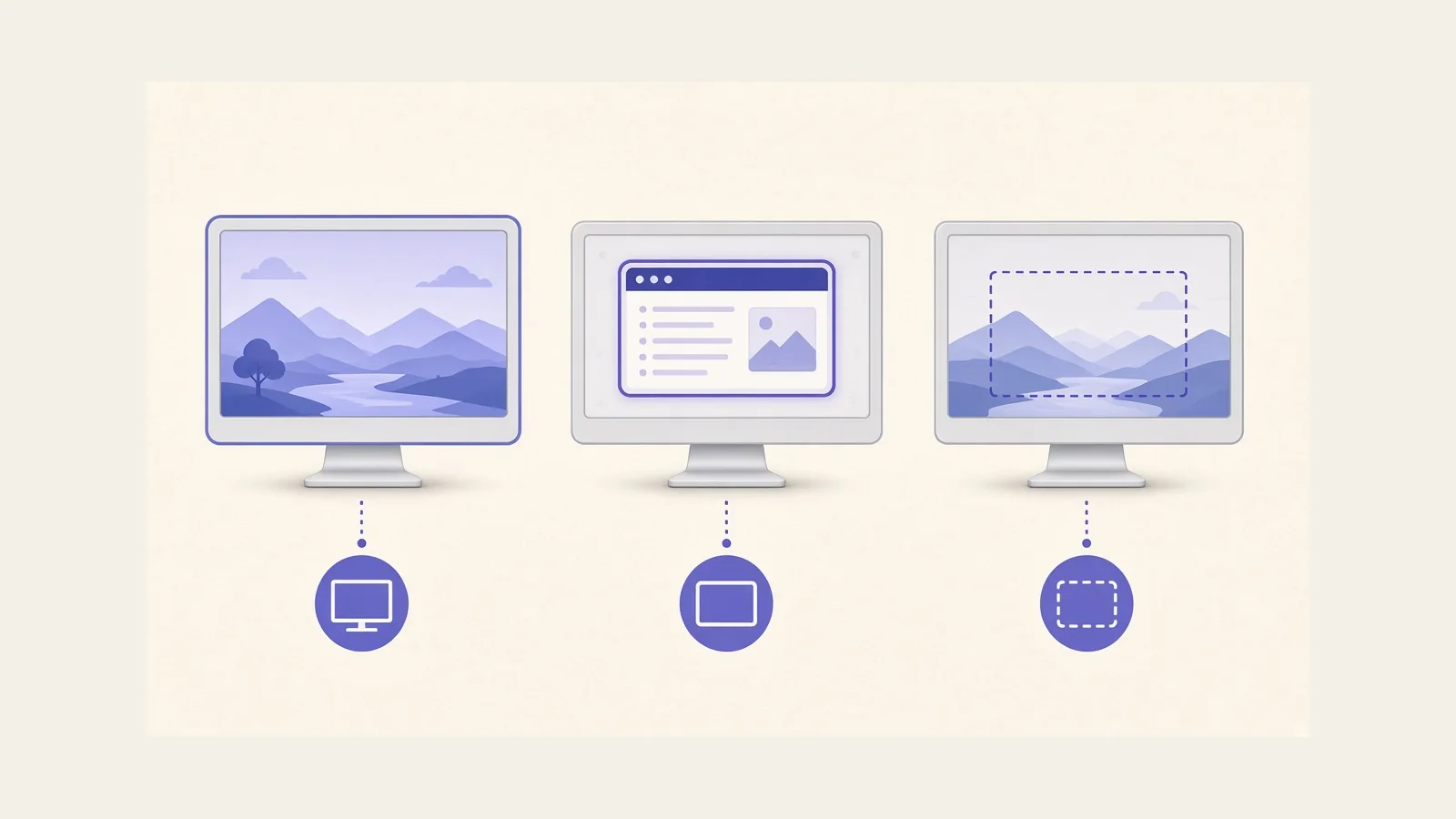
You can record the whole display, one window, or a selected area. Official recording pages also cover microphone, webcam, and system audio. System audio can come from all apps or from apps you select.
The camera preview can sit on the screen while you record. Official webcam notes say the preview is not burned into the capture the way it appears during the take, so a preview that covers part of the UI does not permanently hide that area. Layout, size, and position are adjusted later.
Other documented recording utilities include resizing a window to an exact size before capture and hiding desktop icons for classroom-style recordings. Keyboard shortcut overlays are available when you want viewers to see the keys you press.
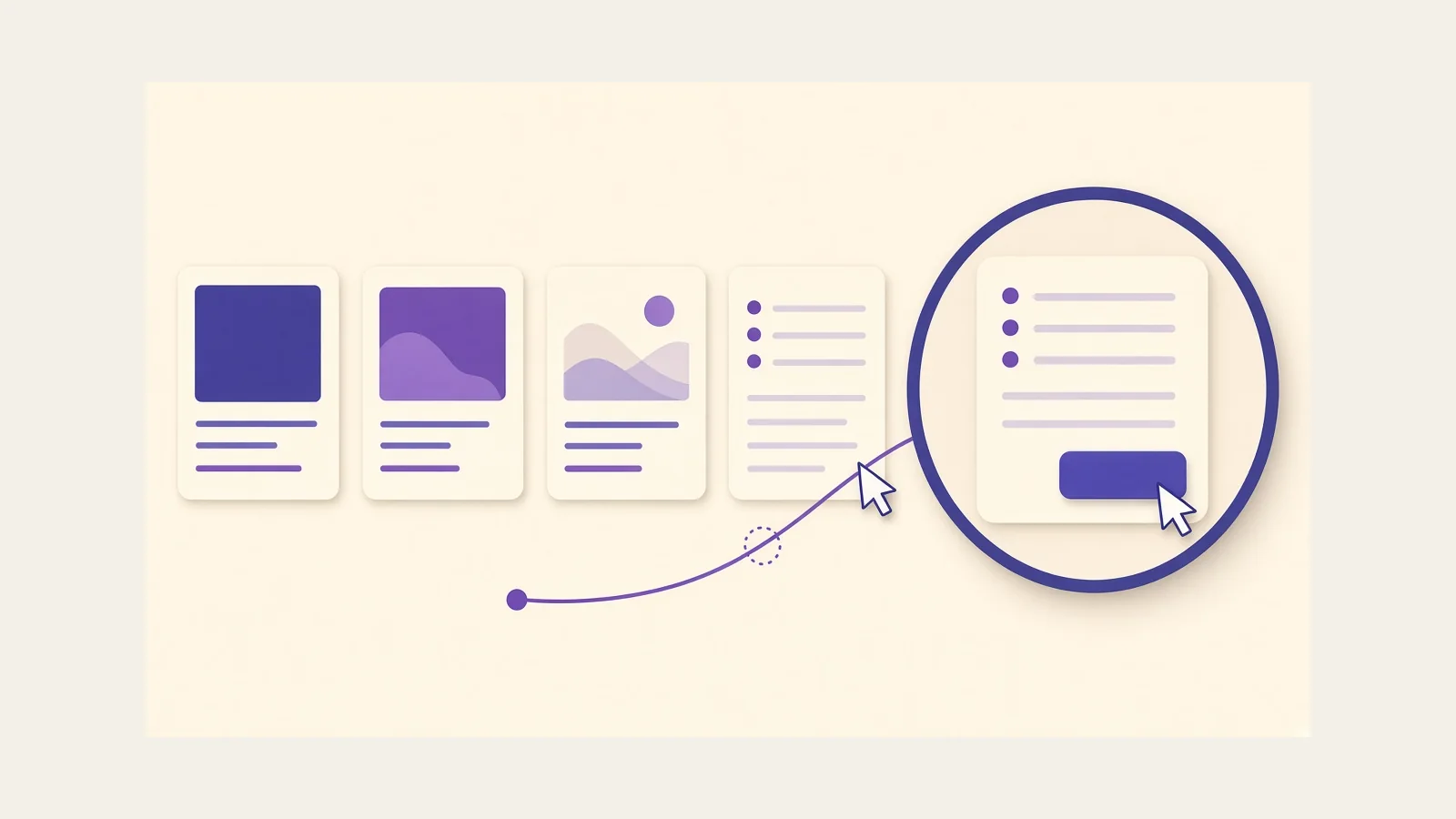
Screen Studio’s published zoom model is built around the timeline, not around live camera moves. You place a zoom, and the app animates the motion.
Focuses on areas where clicks happened. If a zoom sits on a stretch with no clicks, it will not have a target.
You choose the region. Use it for hover-only UI, reading text, or any moment a click is the wrong focus.
Official product pages also describe smart framing so a webcam overlay is less likely to cover the cursor after a zoom. When you change aspect ratio, documented behavior is that zooms can be re-aimed for the new frame.
Because the cursor is applied after capture, the official cursor guide lists editor controls rather than “record it right the first time” limits.
Animation settings include cursor motion styles and motion blur for cursor movement, zooming, and screen movement while zoomed in. High motion looks smoother with blur; dense UI often reads better with a calmer setting.
Official editing topics include trim, cut, speed-up, crop, background, spacing, shadow, inset, camera layouts, captions, and presets. You can apply a preset to keep a series of videos visually consistent, and the developer documents sharing presets with other people.
Audio tools mentioned in official materials include volume normalization and on-device noise reduction. Transcripts and captions can be generated on the Mac. Cloud transcription is described as optional.
These controls sit closer to a finishing tool than to a full multi-track editor. If you need layered graphics, multi-cam switching, or long-form color work, export the video and continue in a dedicated editor. Our editing basics page covers the decisions that still apply either way.
Official export documentation lists MP4 and GIF. MP4 is available at 720p, 1080p, or 4K, at frame rates up to 60 fps. GIF export is documented up to 1080p and is intended for short loops.
You can export to a file or copy the finished video to the clipboard. Shareable links and project sharing are documented as optional cloud features. This site does not host those files and cannot change availability.
Compression, also called quality in the official export notes, changes file size. The same notes say compression does not drive export time the way resolution, frame rate, and GIF-versus-MP4 do.