Video editing
Video editing basics for screen recordings
Screencast editing is mostly subtraction. Remove the wait, keep the action on screen, and make the voice easy to hear.
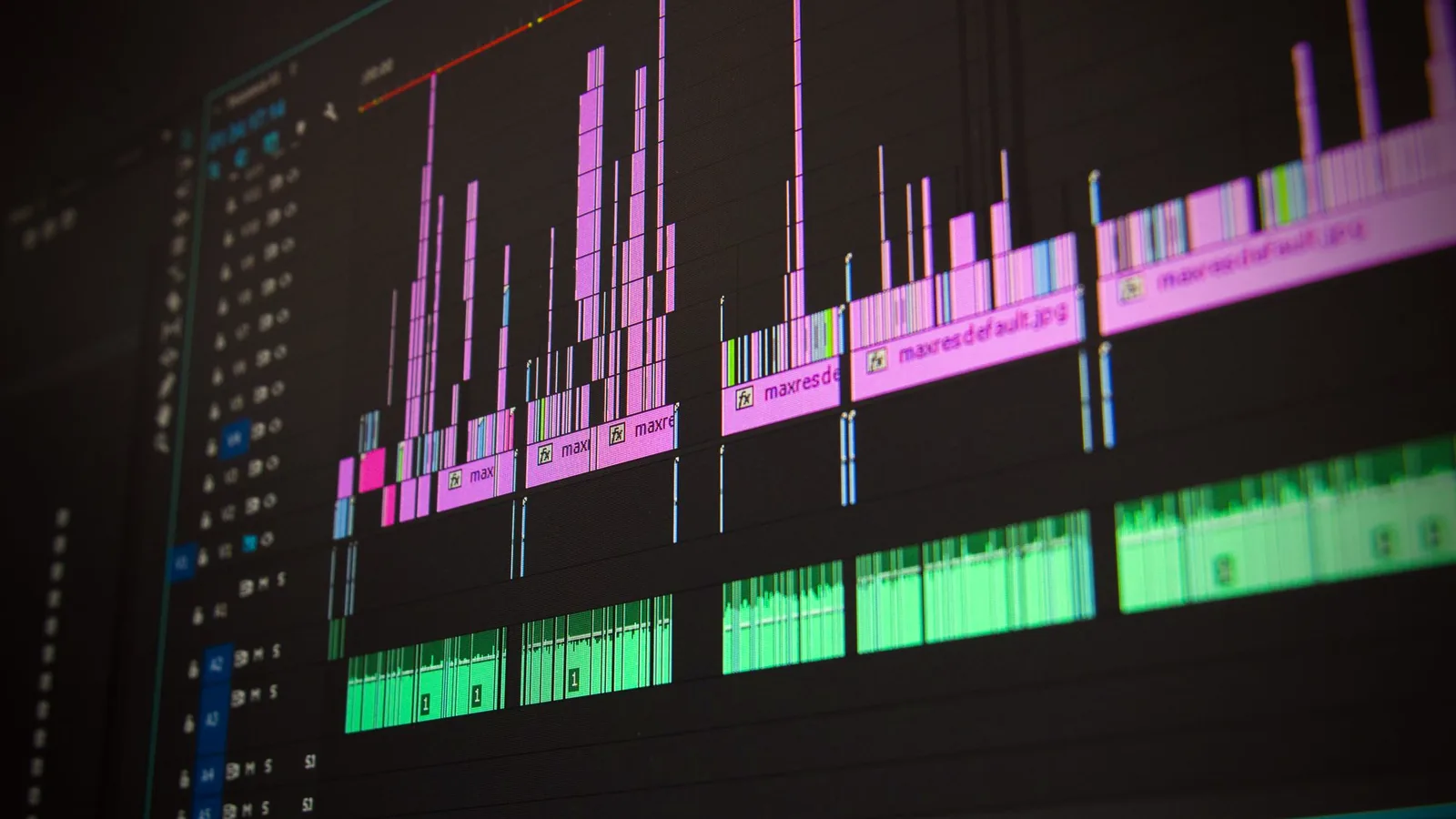
Trimming
The first and last seconds of a take are usually setup. Cut the moment you reach for the mouse, the cough, and the “okay, so.” Leave a short breath so the first word is not tight against the first frame.
Inside the take, trim the waits: a spinner that lasted eight seconds, a search that you already explained, a second attempt after a typo. If the mistake teaches something, keep a short version. If it is only delay, remove it.
In Screen Studio, official editing topics include trim, cut, and speeding up segments. Speeding a typing stretch can help, but keep the voice in sync. If the narration describes each key, do not race the picture past the sentence.
Pacing
Pacing is the space between actions. New users need a beat after a new panel appears. Experienced users want the next step. Edit for the person who has not seen the product, then tighten if the video is an internal demo for people who already live in the UI.
A useful test: pause the video at random. Can you name the task in one clause? If you landed on a cursor wandering across empty chrome, the cut is still loose.
Do not equalize every shot to the same length. A settings toggle may need two seconds. A three-step form may need twenty. The content sets the rhythm, not a template.
Visual focus
The frame should contain the thing you are talking about and as little else as you can manage. That may mean a zoom, a tighter capture area on the next take, or hiding a sidebar you never mention.
Highlight tools and cursor enlargements are useful when the target is small. They become noise when every button gets a halo. Prefer one focus method at a time: either a zoom or a highlight, not both on the same control.
If you use a webcam, place it where it does not cover the action. A face in the corner is fine until the next click happens under that corner. Official Screen Studio notes describe camera layouts that can adjust with zooms; still verify the final frame.
Audio quality
Viewers forgive a plain picture sooner than they forgive harsh audio. Listen on headphones and on a laptop speaker. Cut mouth clicks and long “ums” if you can do it without making the breath pattern sound artificial.
Keep the voice level even. If one sentence was recorded after you leaned back, raise that region or re-record the line. Noise reduction helps a light fan; it will not rescue a room with an air conditioner and a hard desk.
If the lesson includes product sound, dip the voice slightly rather than letting two full-volume tracks fight. Screen Studio’s official materials mention volume normalization and on-device noise reduction. Use them as a start, then listen again.
Transitions
Hard cuts are the default for screen video. The interface already moves. A dissolve between two nearly identical windows looks like a mistake. Use a short fade only when you change topic, location, or day.
Zoom motion is already a transition. If you animate into a control, you rarely need an extra wipe. Title cards can mark chapters in a longer lesson. Keep the card on screen long enough to read, then cut.
Final review
Watch the export, not only the timeline. Confirm that the first sentence matches the first picture, that no password or personal notification slipped through, and that the last sentence has a clear ending. Check the file on a phone and on a laptop.
Make a short list of issues, fix them in one pass, and export again. Then stop. A screencast that is clear beats a screencast that was polished past the point of usefulness.
When the picture is right, move to export settings. If the recording process is still the weak point, use the recording workflow.