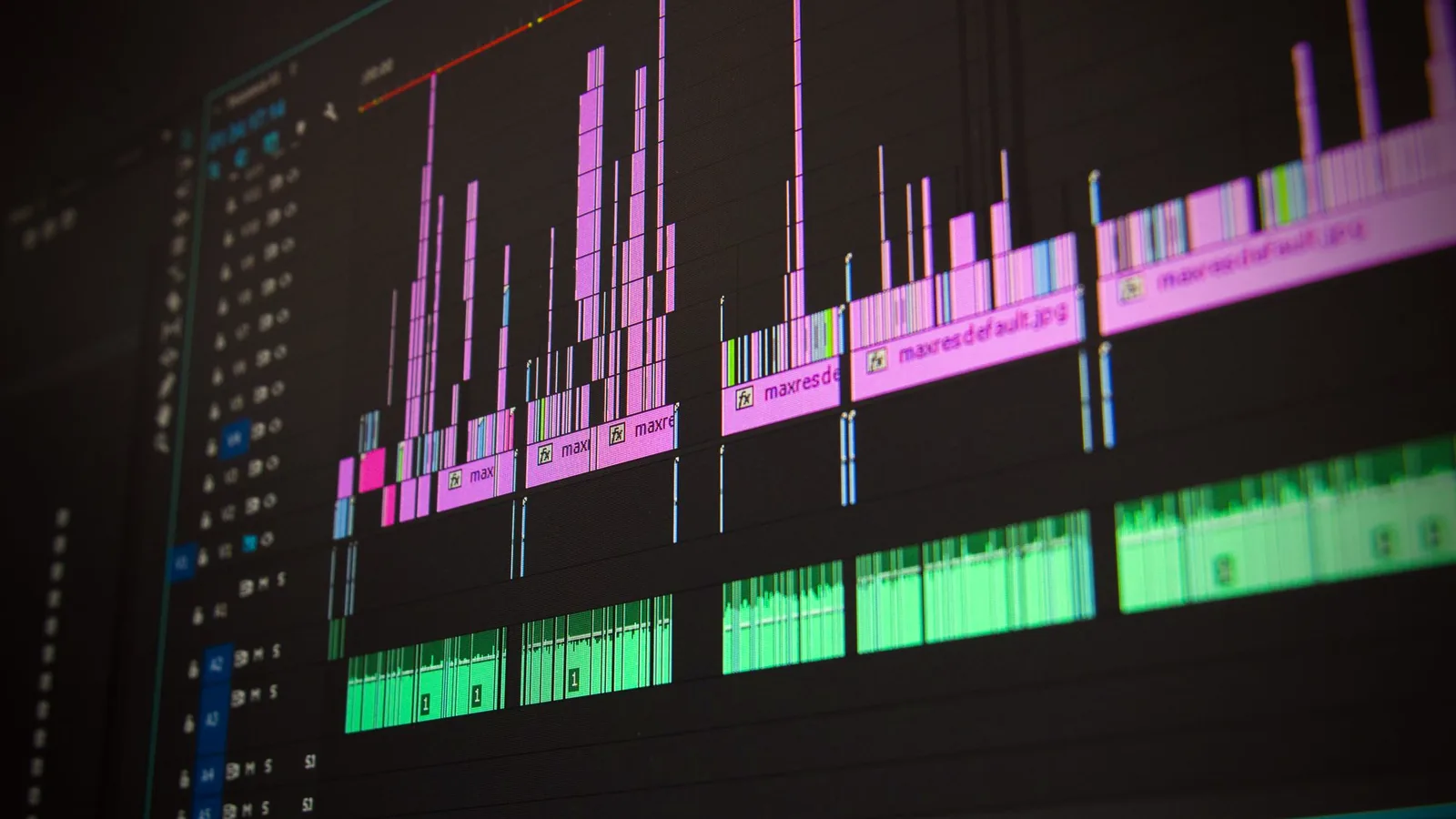
Edit for attention, not decoration
Trimming and pacing do most of the work. Transitions should stay quiet so the interface remains the subject.
Video editing basicsVideo Workflow Studio
Practical guides and video workflows for recording, editing, and presenting professional screen videos.
Start with the capture itself. A clean desktop, a chosen frame, and a working microphone matter more than any later effect.
Viewers notice clutter first. Close extra windows, silence notifications, and decide whether you need the full display, one window, or a smaller area.
Then check the microphone and, if you use one, the webcam. A short test clip saves a long re-record.
Open the Mac recording guideFeatured software
Screen Studio is a third-party screen recorder and lightweight editor for macOS. Our pages explain how its recording, zoom, cursor, and export tools fit a demo or tutorial workflow.
Video Workflow Studio is not the official Screen Studio website and does not sell or support the app.
After the take, the job is to make the action easy to follow. Cut dead air, keep the frame on what matters, and protect the voice track.
Trimming and pacing do most of the work. Transitions should stay quiet so the interface remains the subject.
Video editing basicsA well-timed zoom keeps small UI readable. Cursor size and motion tell the viewer where to look next.
Zoom and cursor effectsPlanning, preparation, recording, editing, export, and review. Use the same order so quality does not depend on memory.
Recording workflowResolution, frame rate, aspect ratio, and compression all trade file size against sharpness. There is no single export preset for every video.
Choose settings from the destination: a course player, a docs page, a 16:9 demo, or a vertical social cut each needs a different balance.
Read export settings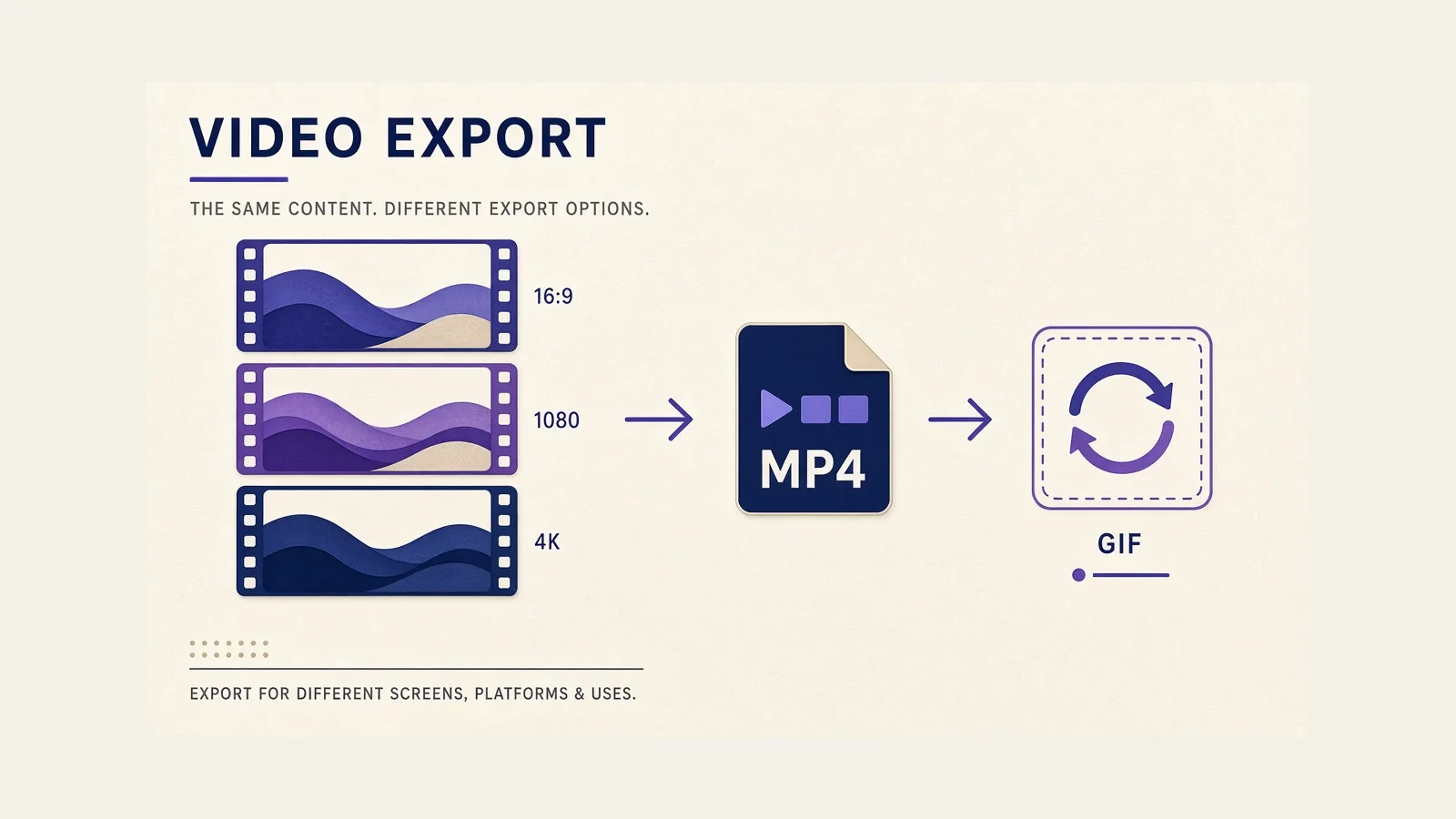
Start with the page that matches the question you have today.
Desktop prep, capture area, microphone, webcam, and file naming.
An independent walkthrough of recording, zoom, editing, and export.
Short answers on built-in macOS capture, Screen Studio positioning, audio checks, and when 4K is worth the extra file size.
This site publishes original guides for people in the United States who record software, edit demos, and present work on video. The focus is practical process: what to prepare, what to capture, and how to finish a file you can share.
Screen Studio appears as a featured example of macOS screen recording software. We describe publicly documented capabilities and send readers to the official site for downloads, pricing, and product support.
Learn more about the project